1Getting in
KeepOn is invite-only for now. Once you have been added, you sign in with your email. There is no password.
Sign in with a code
- Open www.keepon.fit in Safari.
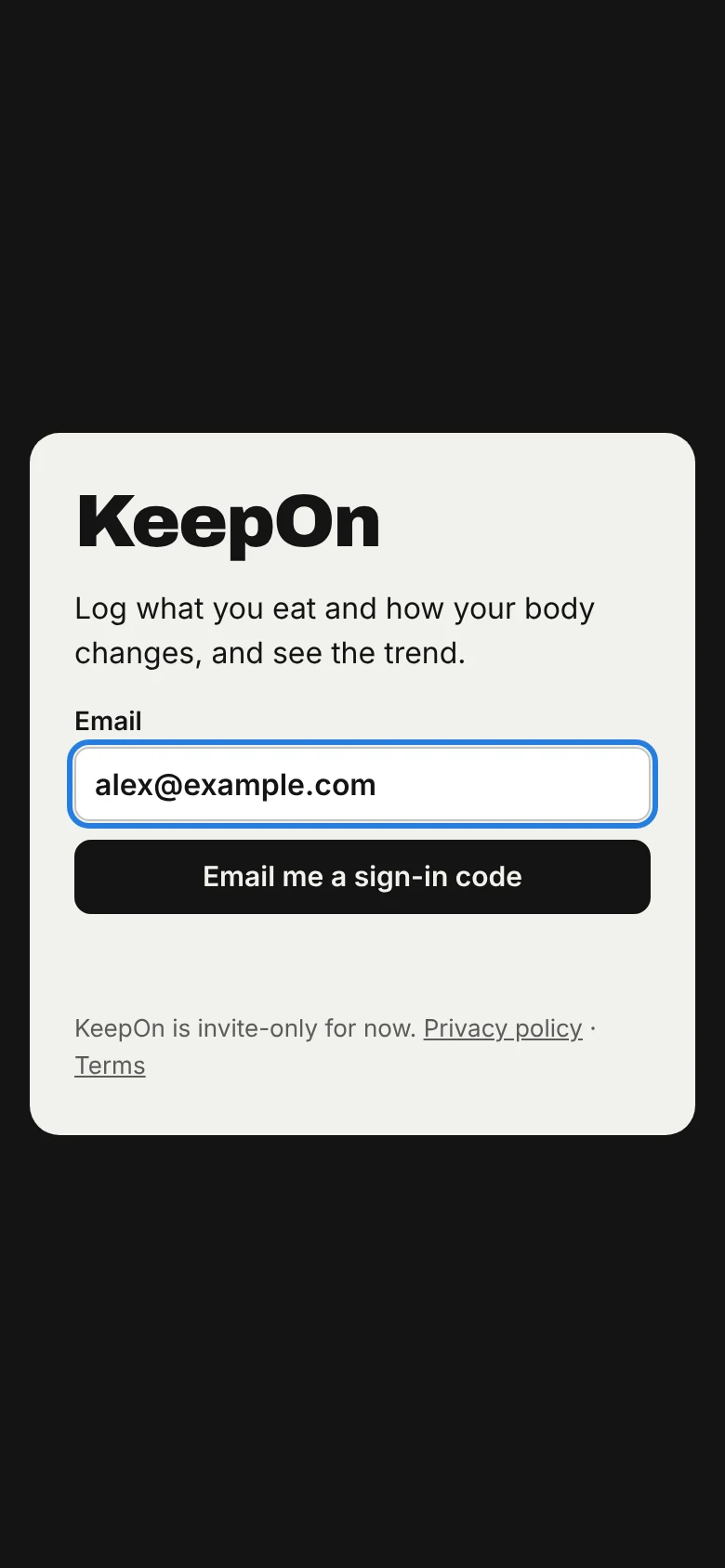
- Type your email and tap Email me a sign-in code.
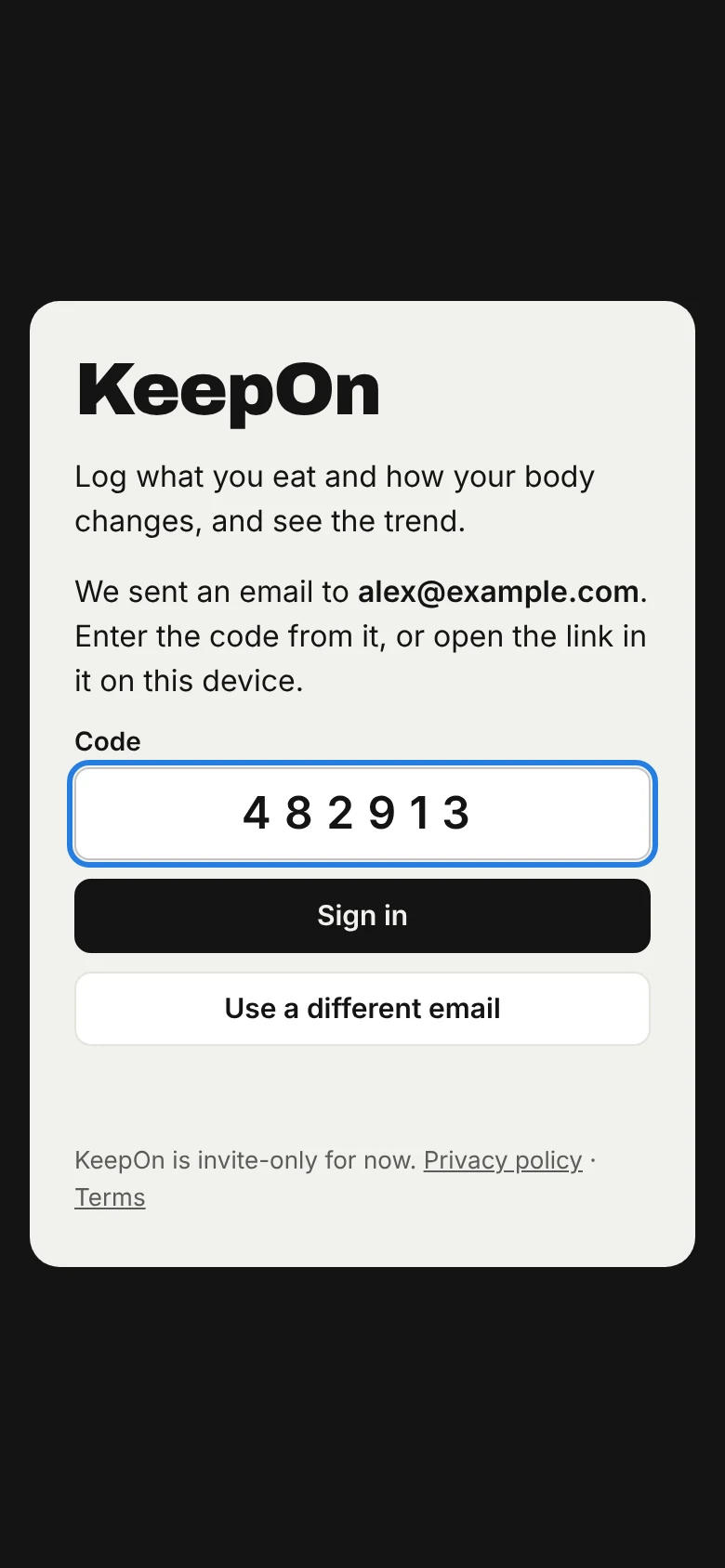
- Open the email from login@keepon.fit and type the 6-digit code, then tap Sign in. You can also tap the link in the email.
You stay signed in on that device until you sign out.
Agree once
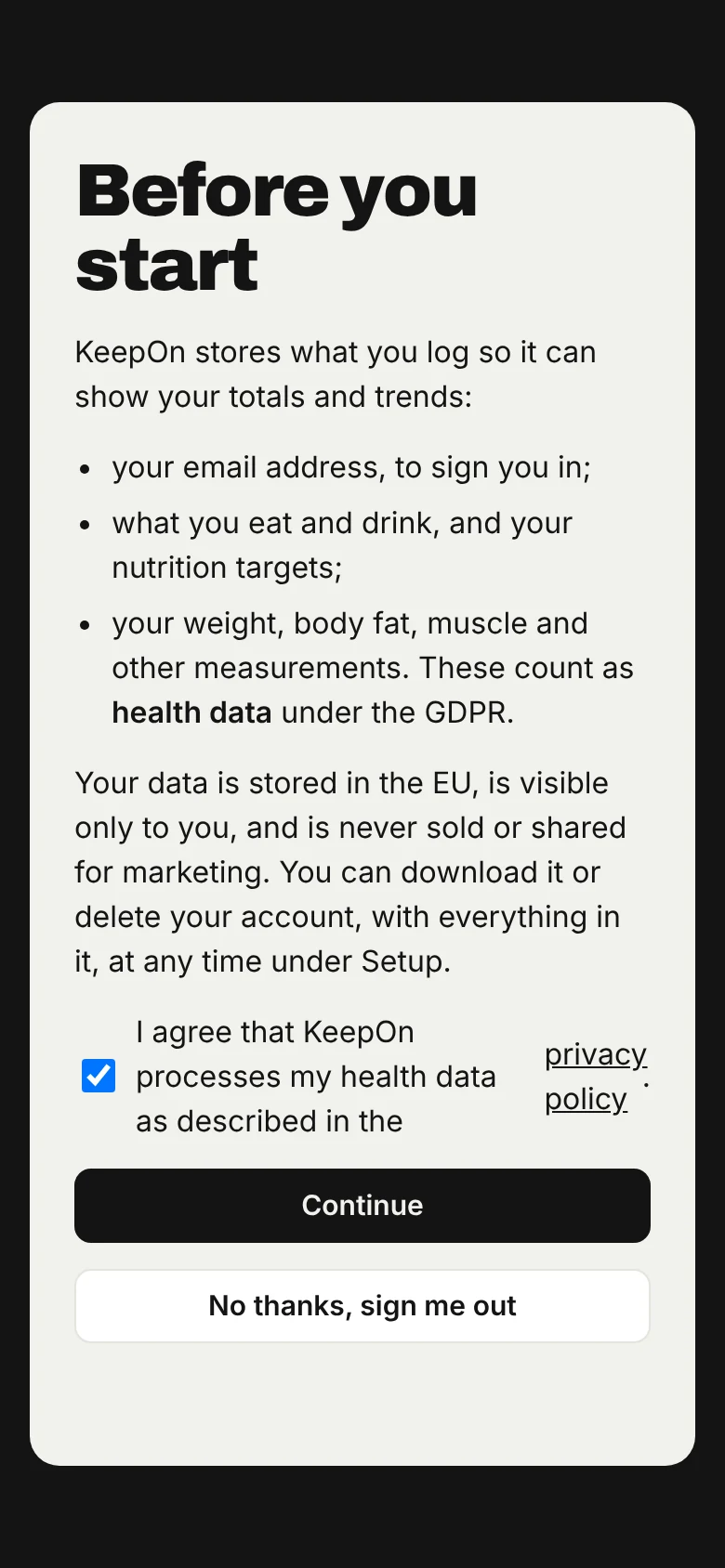
The first time, KeepOn shows what it stores: your email, what you eat, and your body measurements. Weight and body fat count as health data under the GDPR, so you are asked to agree before anything is saved.
Your data is stored in the EU, only you can see it, and you can download or delete it at any time under Setup.
Tick the box and tap Continue. You land on Setup.
Put it on your Home Screen
KeepOn works like an app once it is on your Home Screen: full screen, its own icon, no browser bars. Open www.keepon.fit in your browser, then:
| Browser | How |
|---|---|
| iPhone: Safari | Share (square with an arrow) → scroll down → Add to Home Screen → Add |
| iPhone: Chrome | Share in the address bar at the top → Add to Home Screen |
| iPhone: Edge, Brave, Firefox and others | Open the browser menu → Share → Add to Home Screen. If it isn’t there, open www.keepon.fit in Safari and add it from there. |
| Android: Chrome | ⋮ → Add to Home screen (or Install app) |
| Android: other browsers | Look in the browser menu for Install app, Add to Home screen or Add to phone. |
Open KeepOn from the new icon. On iPhone, sign in once more: the Home Screen app keeps its own sign-in, separate from the browser. It remembers you from then on.
2Setup: your first step
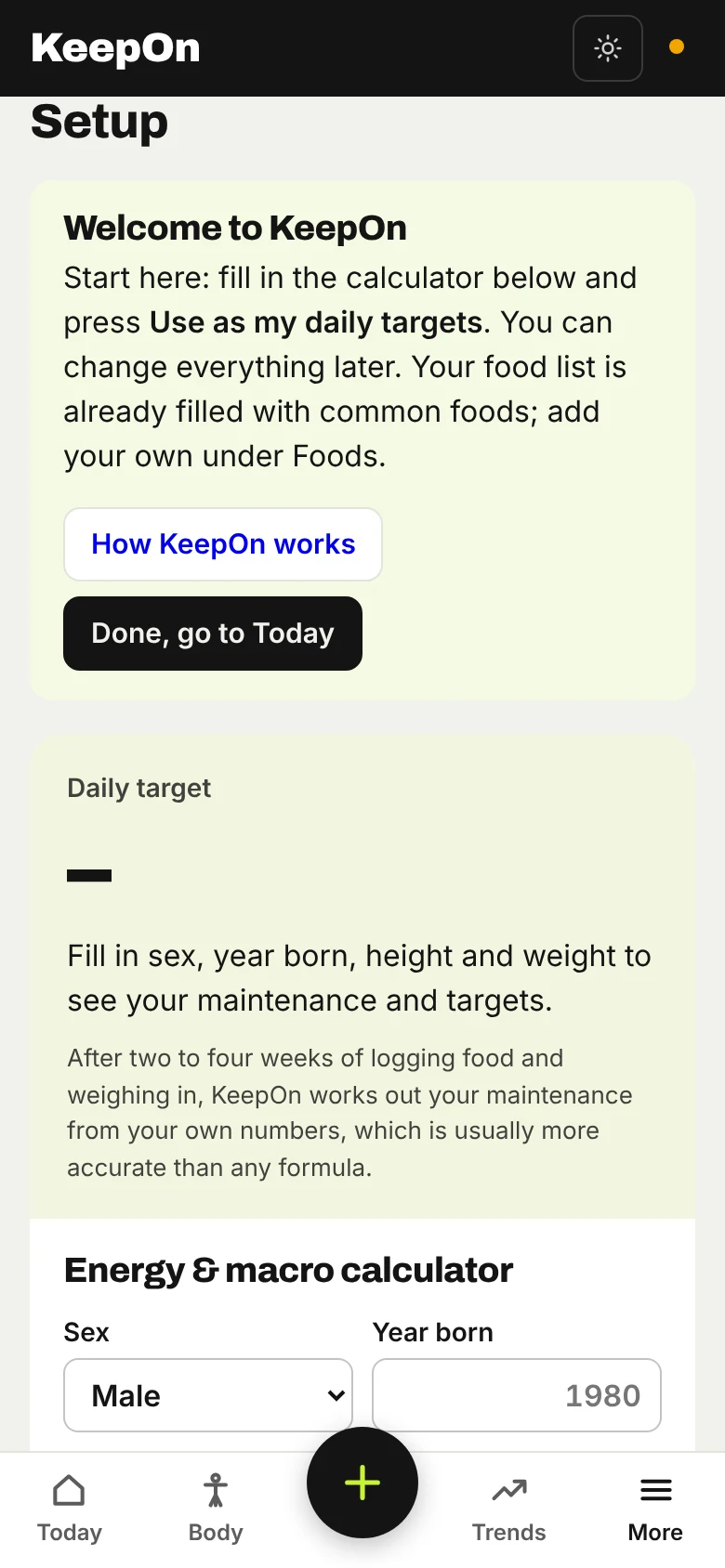
Ten minutes here makes everything else work. You set your daily targets with the calculator, then choose how Today looks. You can come back any time: More → Setup.
The welcome note
New accounts open on Setup with a short welcome. Your food list already has around 40 common foods, so you can start logging straight away; add your own later under Foods.
Fill in the calculator below the note and tap Use as my daily targets. When you are done, Done, go to Today closes the note.
Until you have targets, the daily target box shows a dash and explains what is missing.
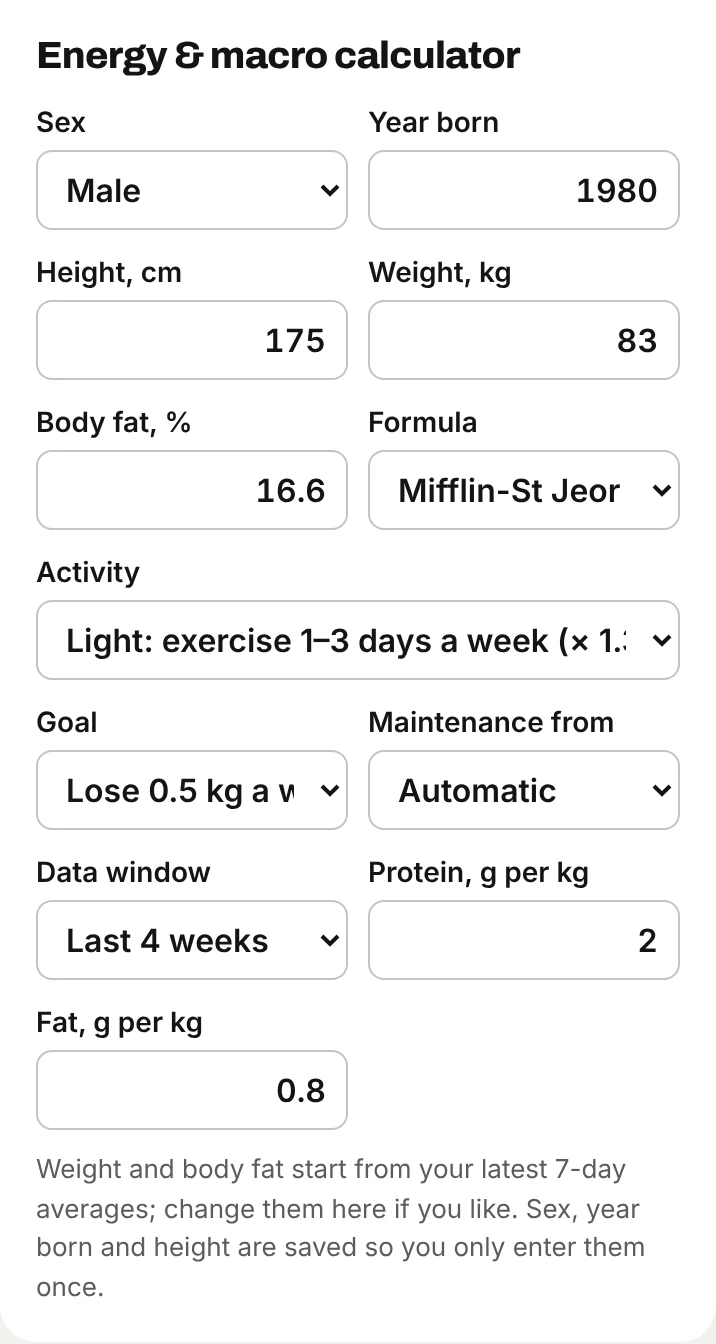
Energy & macro calculator: what to enter
| Field | What to put in |
|---|---|
| Sex, Year born, Height | Used by the formula. Saved, so you enter them once. |
| Weight, Body fat | Start from your latest 7-day average. Change them if you want to plan with other numbers. Body fat is optional unless you pick Katch-McArdle. |
| Formula | Mifflin-St Jeor needs only height, weight and age. Katch-McArdle uses your lean mass; pick it if you know your body fat from a scale or scan. |
| Activity | Be honest: most office workers who train 2–3 times a week are Light. Count your job and steps, not only the gym. |
| Goal | How fast to lose or gain. 0.25–0.5 kg a week is easier to keep up and protects muscle. |
| Maintenance from | Automatic uses your own logged data once there is enough, and the formula until then. Formula only ignores your data. |
| Data window | How many recent weeks to learn from. 4 weeks is a good default; 2 reacts faster but is noisier. |
| Protein, Fat (g per kg) | Grams per kg of body weight. 1.6–2.2 g protein and 0.8 g fat suit most people who train. Carbs get the rest. |
Reading the result
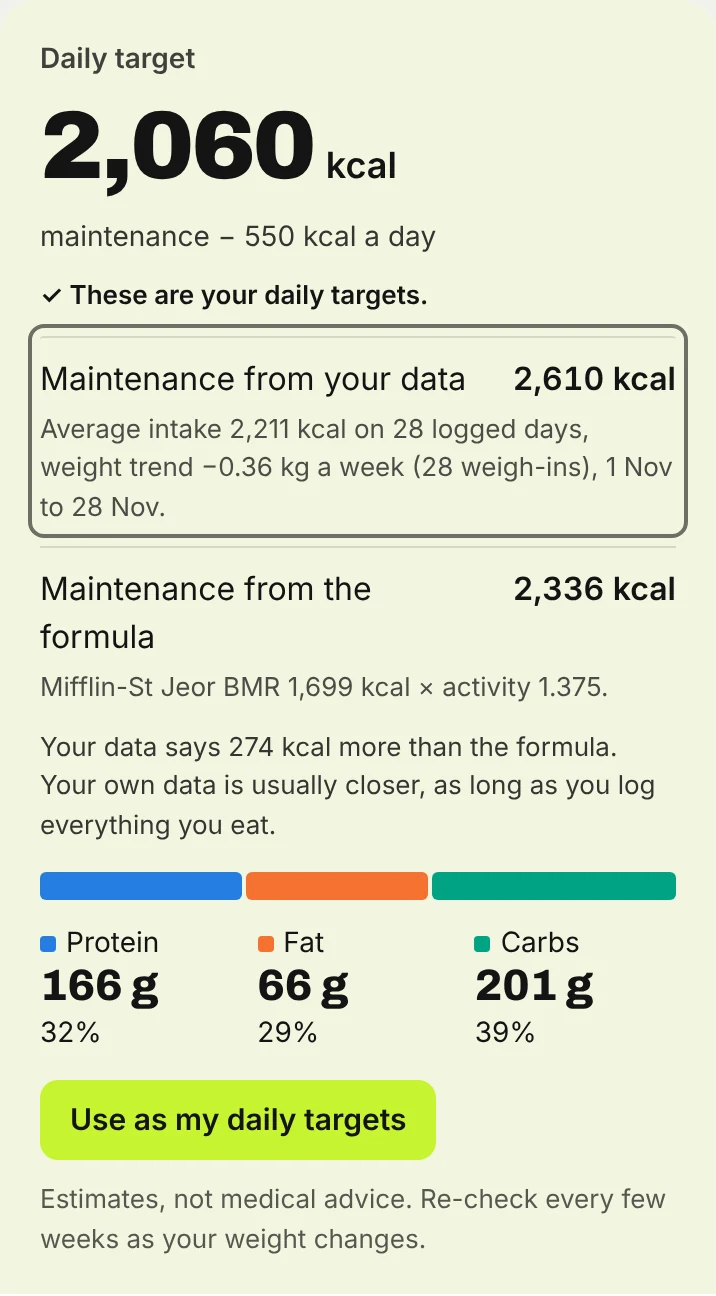
The green box shows your daily target and how far it is below or above maintenance.
- Maintenance from your data appears after a couple of weeks of logging and weighing in (see Questions). It takes what you actually ate and how your weight actually moved. This is usually more accurate than any formula. The highlighted line is the one in use.
- Maintenance from the formula is the textbook estimate: your resting energy (BMR) × activity.
- The coloured bar splits the target into protein, fat and carbs, in grams and as a share of calories.
Tap Use as my daily targets to copy everything into Daily targets. A message at the bottom lets you undo it.
Fine-tuning. Want more protein, say 2.2 g per kg when cutting? Set it in the calculator (Protein, g per kg) and carbs adjust to keep the same calories. Or type your own numbers under Daily targets. When your targets differ from the suggestion, the top of the box shows them first, with how far below maintenance they put you.
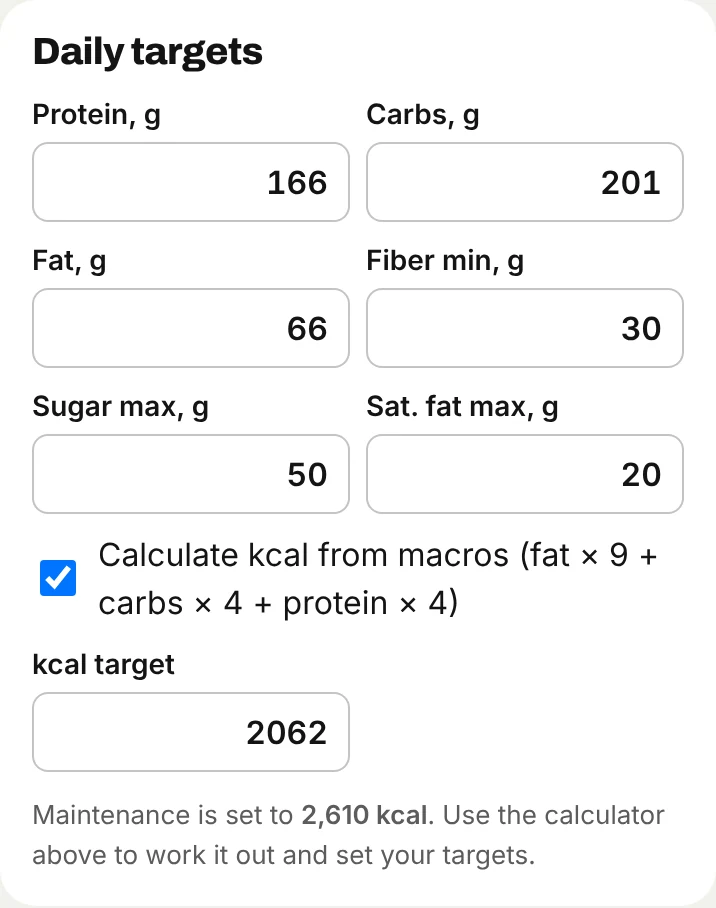
Daily targets
These numbers drive the rings and bars on Today. The calculator fills them in, but you can type your own.
- Protein, Carbs, Fat: daily goals in grams.
- Fiber min: a floor to reach. Sugar max and Sat. fat max: limits to stay under. They turn red when you go over.
- Calculate kcal from macros: keep it ticked and the kcal target is always fat × 9 + carbs × 4 + protein × 4. Untick it to set kcal yourself.
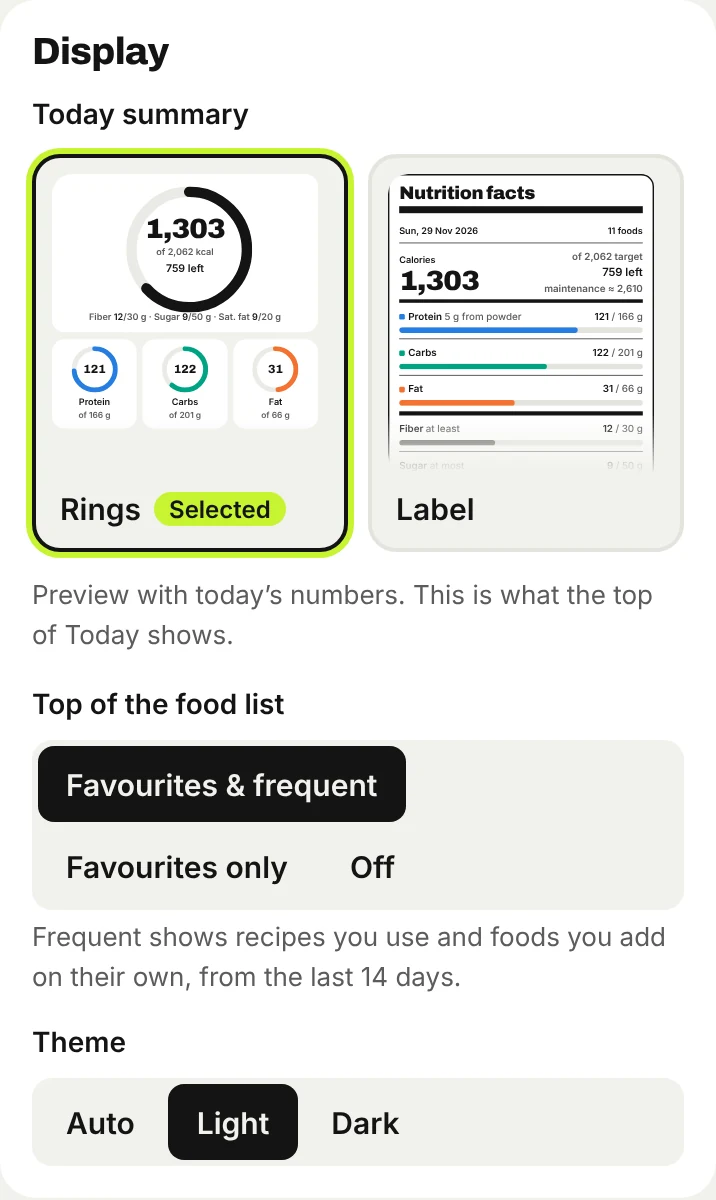
Display: Rings or Label
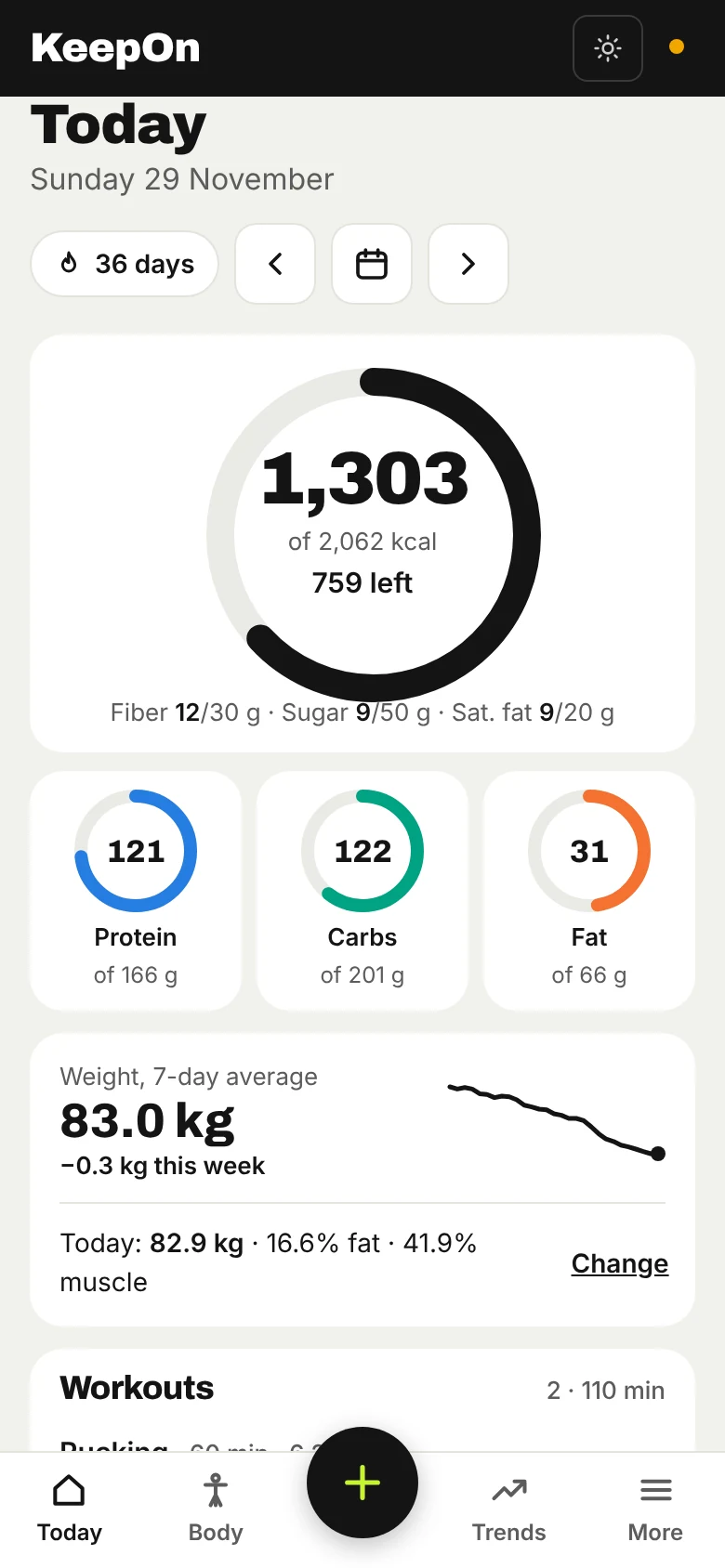
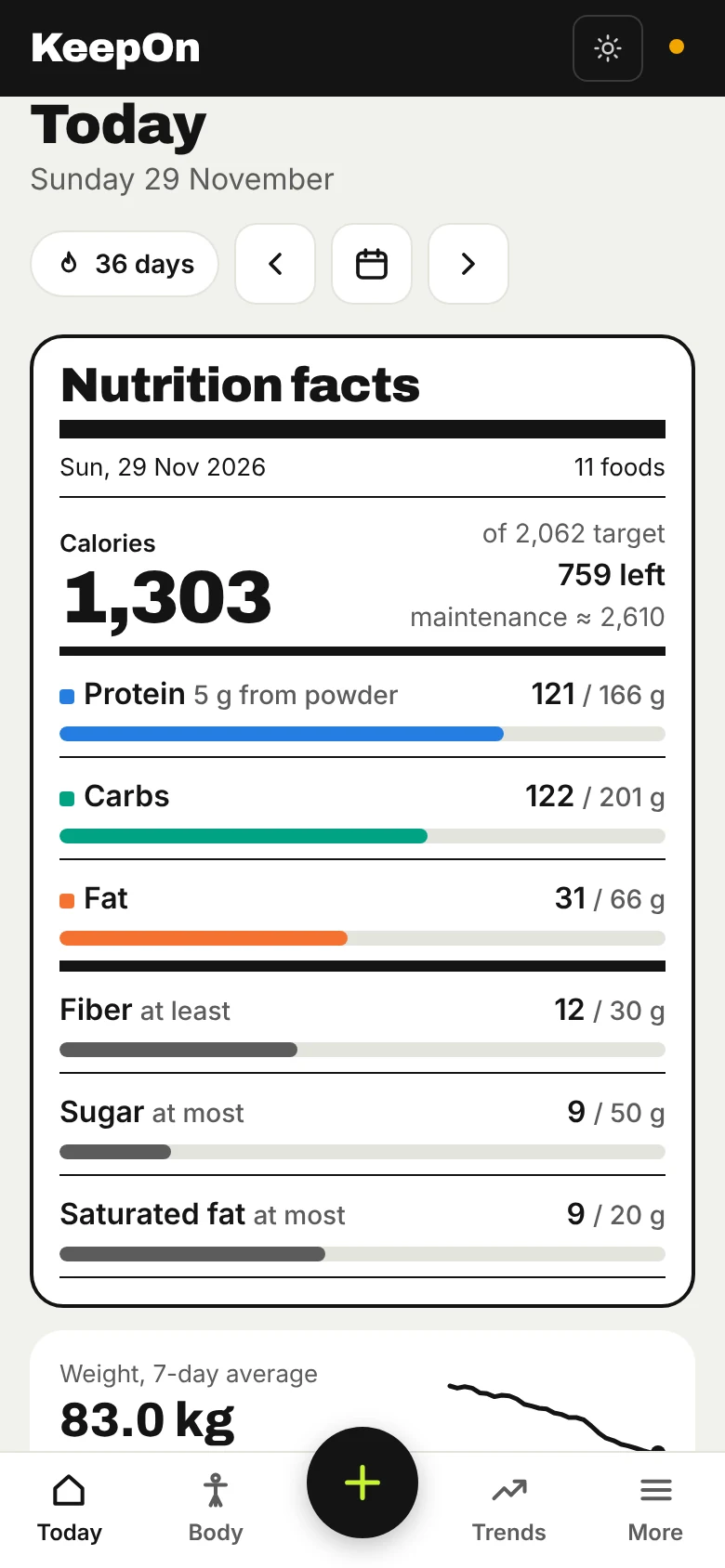
Today summary picks what the top of Today looks like. Both show the same numbers; the preview uses yours.
- Rings: one big ring for calories and three small ones for protein, carbs and fat. Quick to read at a glance.
- Label: a nutrition-facts label with a bar per nutrient, including fiber, sugar and saturated fat.
Rings and Label side by side
The same day in both styles. Switch whenever you like; nothing else changes.
Top of the food list
What appears first when you open the food list:
- Favourites & frequent (recommended): your starred foods, plus recipes and foods you logged in the last 14 days.
- Favourites only: just the foods you starred. Pick this if you want full control.
- Off: the list stays in section order.
Frequent is smart about recipes: if you logged a recipe, it shows the recipe, not each ingredient. More in Logging food.
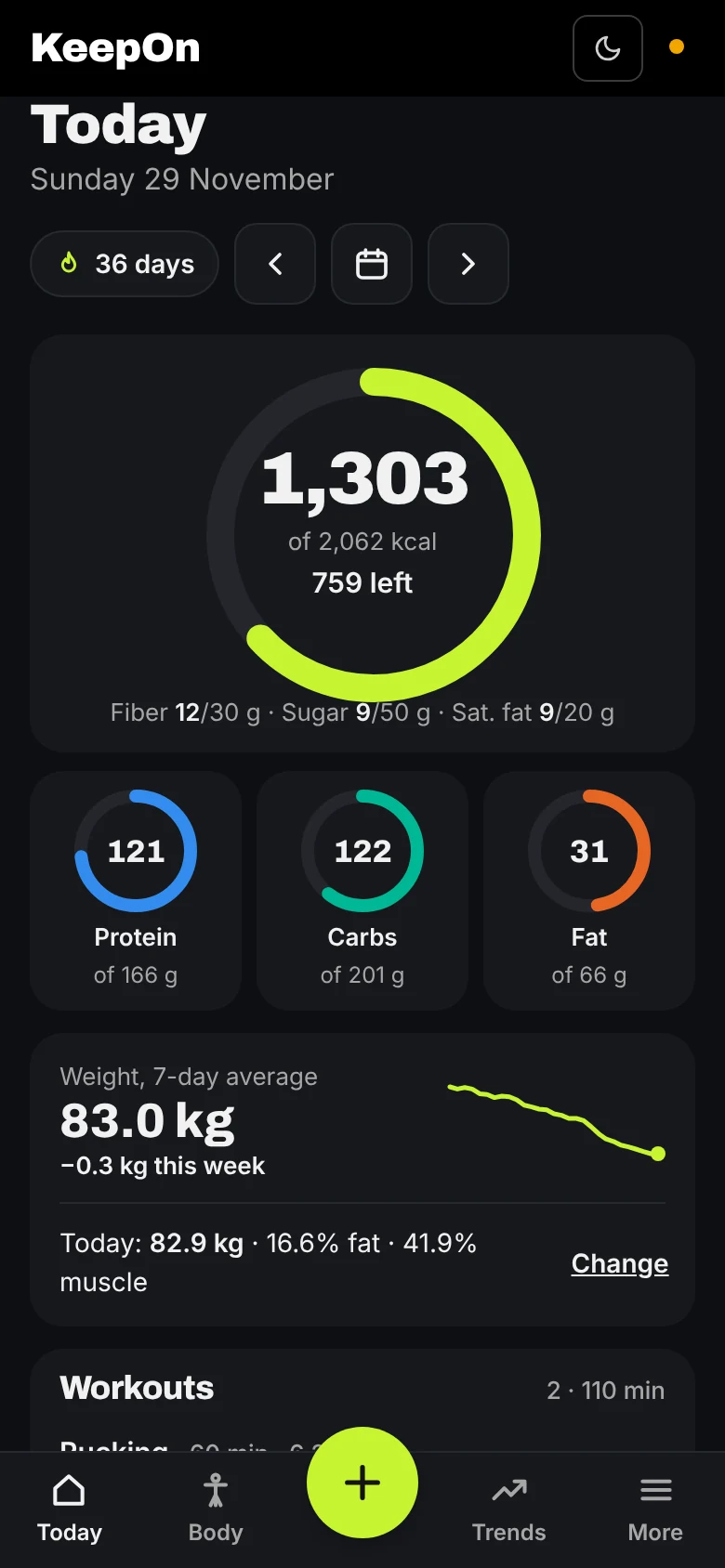
Theme: Auto, Light, Dark
Auto follows your iPhone (Settings → Display & Brightness). Light or Dark fixes it. The sun/moon button in the top bar of every screen switches it too.
Body metrics
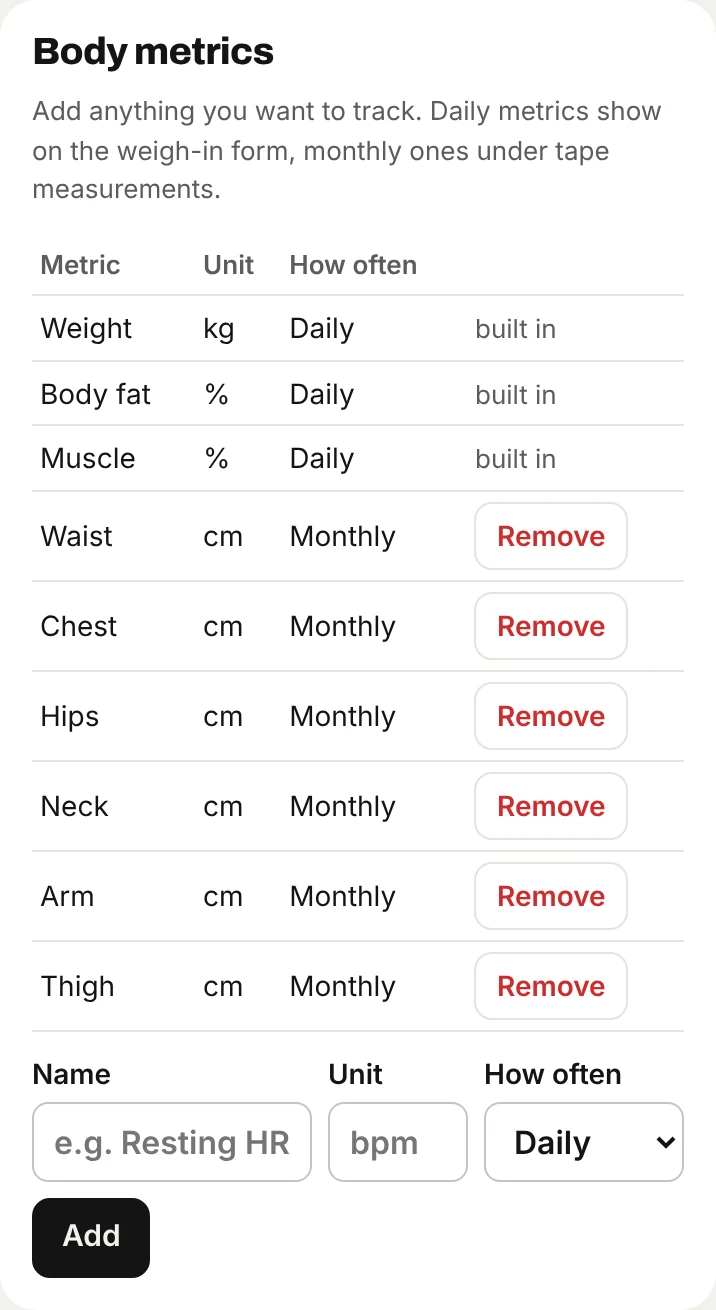
Weight, body fat and muscle are built in. Add anything else you want to track and say how often:
- Daily metrics appear in the weigh-in form, and Trends shows their weekly average. Good ones: Sleep score (pts) from a Garmin, Oura, Whoop or Apple Watch, Resting heart rate (bpm), HRV (ms), Steps.
- Monthly metrics appear under tape measurements on Body (waist, chest, hips, neck, arm, thigh are there to start).
Enter a Name, a Unit and How often, then tap Add. Remove takes a metric off the forms; values you already entered are kept.
Food sections
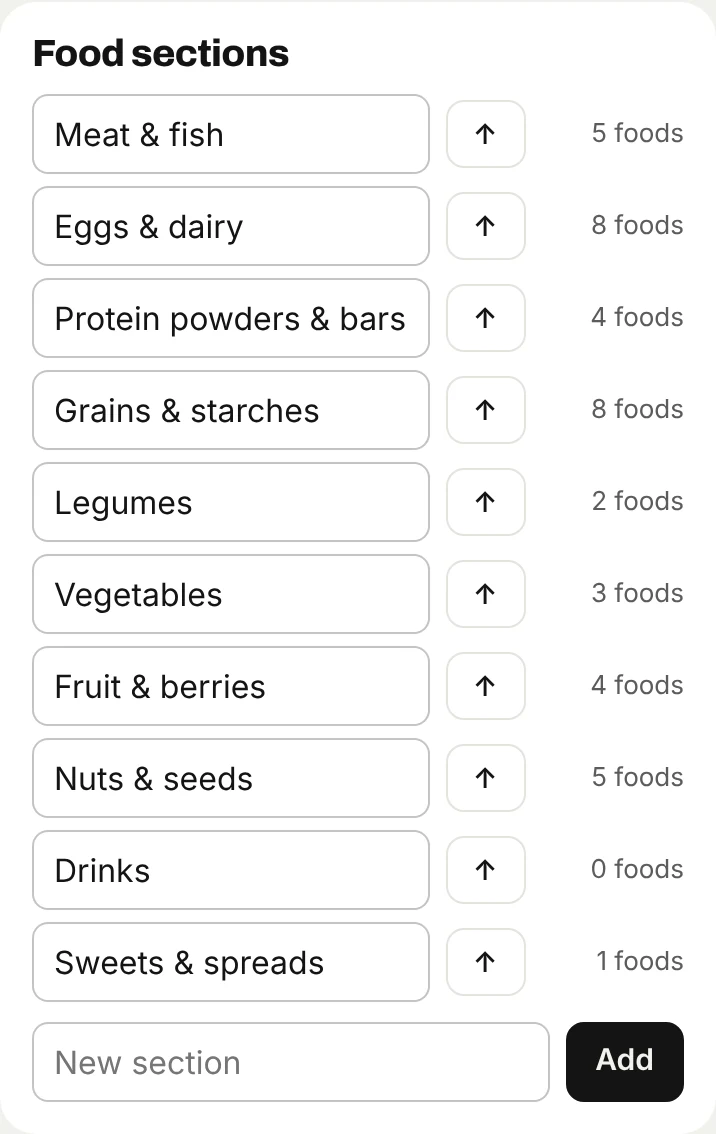
Sections group the food list: Meat & fish, Eggs & dairy, and so on. Tap ↑ to move a section up, so the ones you use most come first. Type a name and tap Add for a new one, or rename one by editing its name; its foods move with it.
The count on the right shows how many foods each section holds.
Account & data
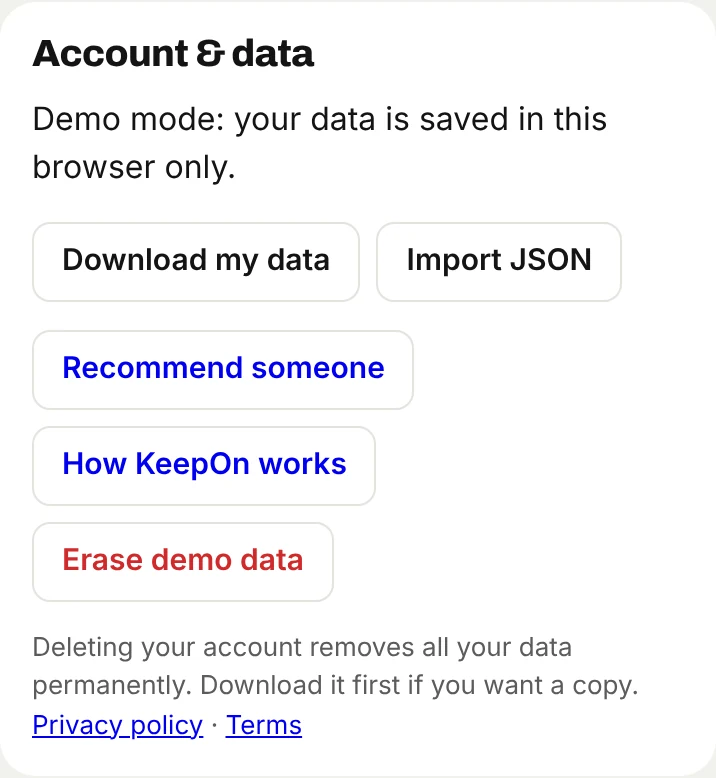
- Download my data: everything as a JSON file. Import JSON loads such a file back.
- Recommend someone: suggest a friend for an invite (see More).
- Sign out, and Delete my account, which removes all your data permanently. Download first if you want a copy.
3The Today screen
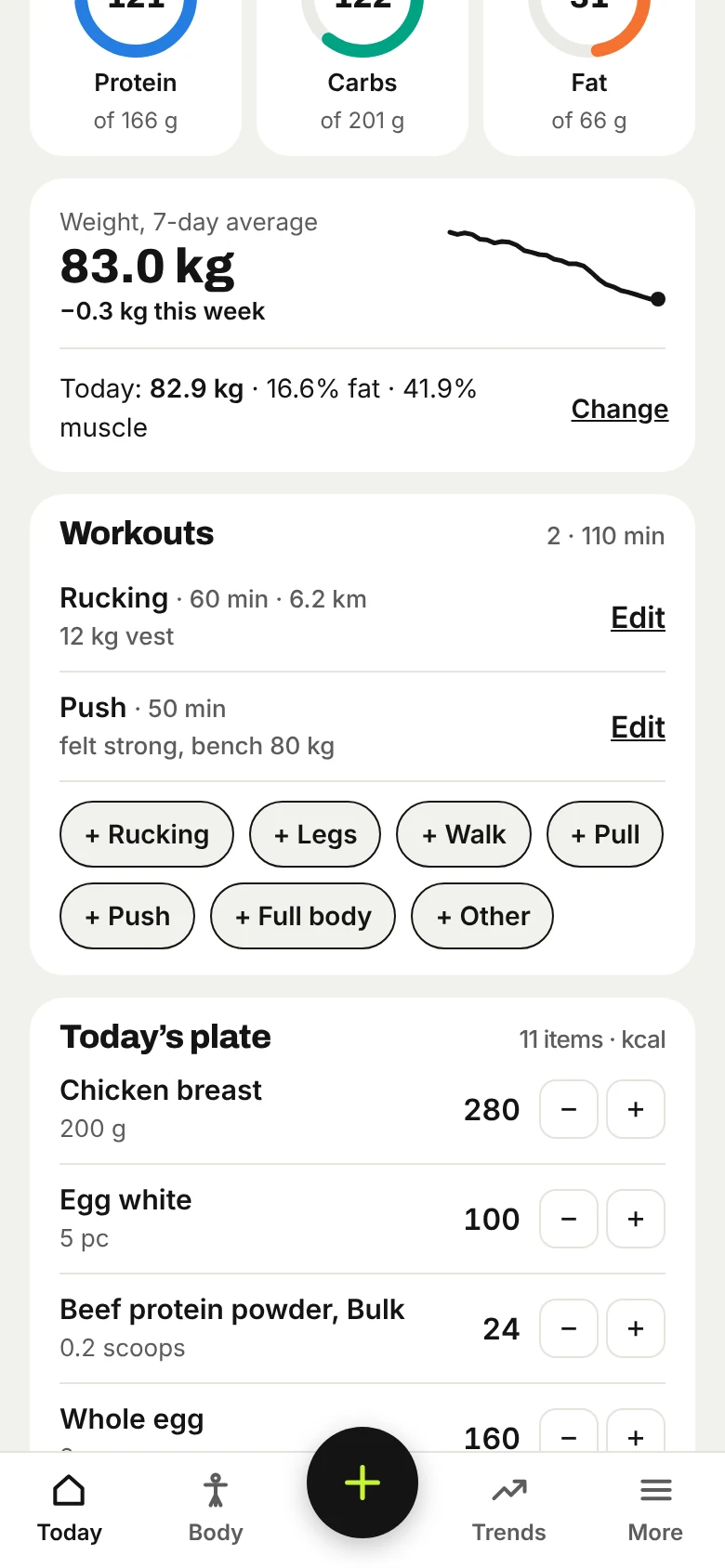
Where you spend most of your time. Top to bottom: the day, what you have eaten against your targets, your weight, your workouts, and the day’s plate.
Reading Today
- Streak (🔥 36 days): days in a row with something logged. Today counts once you log; until then, the streak runs to yesterday.
- ‹ › step a day back or forward; the calendar jumps to any date. Past days can be edited just like today.
- Big ring: calories eaten out of your target, and how many are left. Fiber, sugar and saturated fat sit underneath.
- Small rings: protein, carbs and fat in grams. Carbs and fat turn red when you are more than 10% over; protein never does. The big ring turns red past 5% over.
The bottom bar takes you to Today, Body, Trends and More. The big + in the middle opens the food list.
Weight card
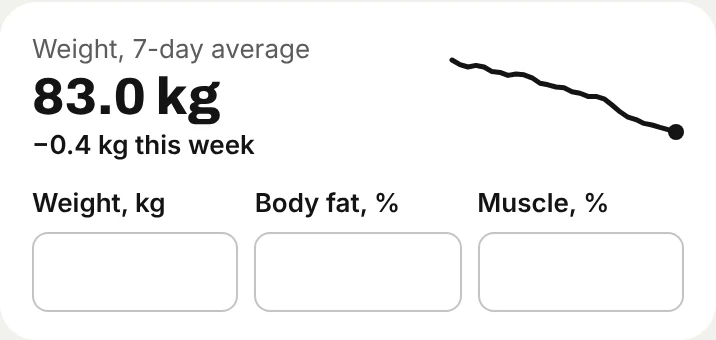
Shows your 7-day average weight, the change over the last week, and a small trend line. Single days jump around with water and salt; the average does not.
If you have not weighed in today, the card shows the form: weight, body fat and muscle (and any daily metrics you added). Values save as you type. Once filled, tap Change to correct them.
Workouts
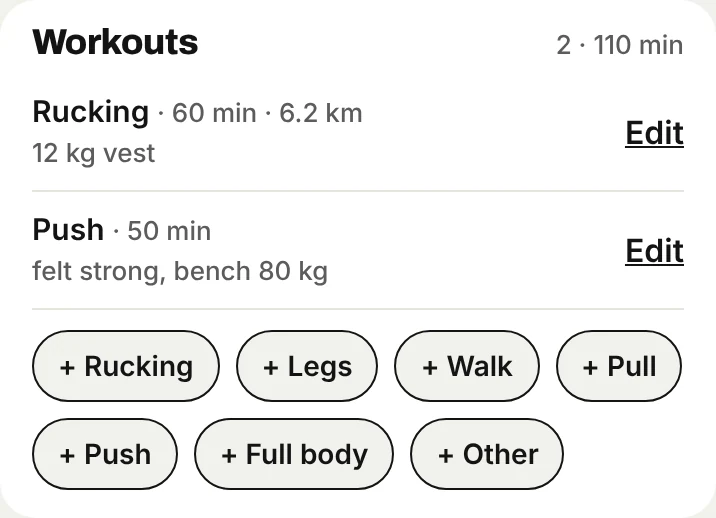
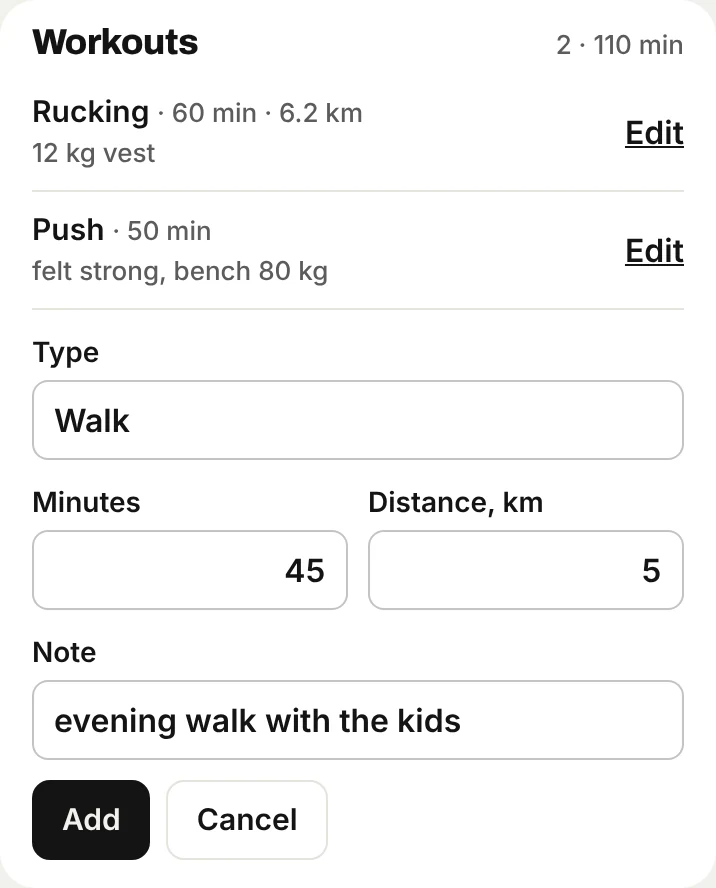
Log every session of the day, each on its own: a morning ruck and an afternoon push session are two workouts.
- Tap a type, e.g. + Rucking. The form opens with the minutes and distance from your last session of that type, so often you only tap Add.
- Minutes and Distance, km are optional. Distance is hidden for gym sessions like Push, Pull and Legs.
- Note: anything you want to remember. Extra weight (“12 kg vest”), a route, or how the session felt (“felt strong, bench 80 kg”).
- + Other lets you type any activity. It is remembered and shows up as a button next time. The types you use most come first.
- Tap Edit on a workout to change or delete it.
Workouts don’t add calories to your target. Your maintenance, learned from your own data, already includes your usual training, so adding them would count them twice.
Today’s plate
Everything logged for the day with its amount and calories. Use − and + to adjust by one unit, without opening the full list.
Foods that came from a recipe show up as their ingredients here, so you can see exactly what went in.
4Logging food
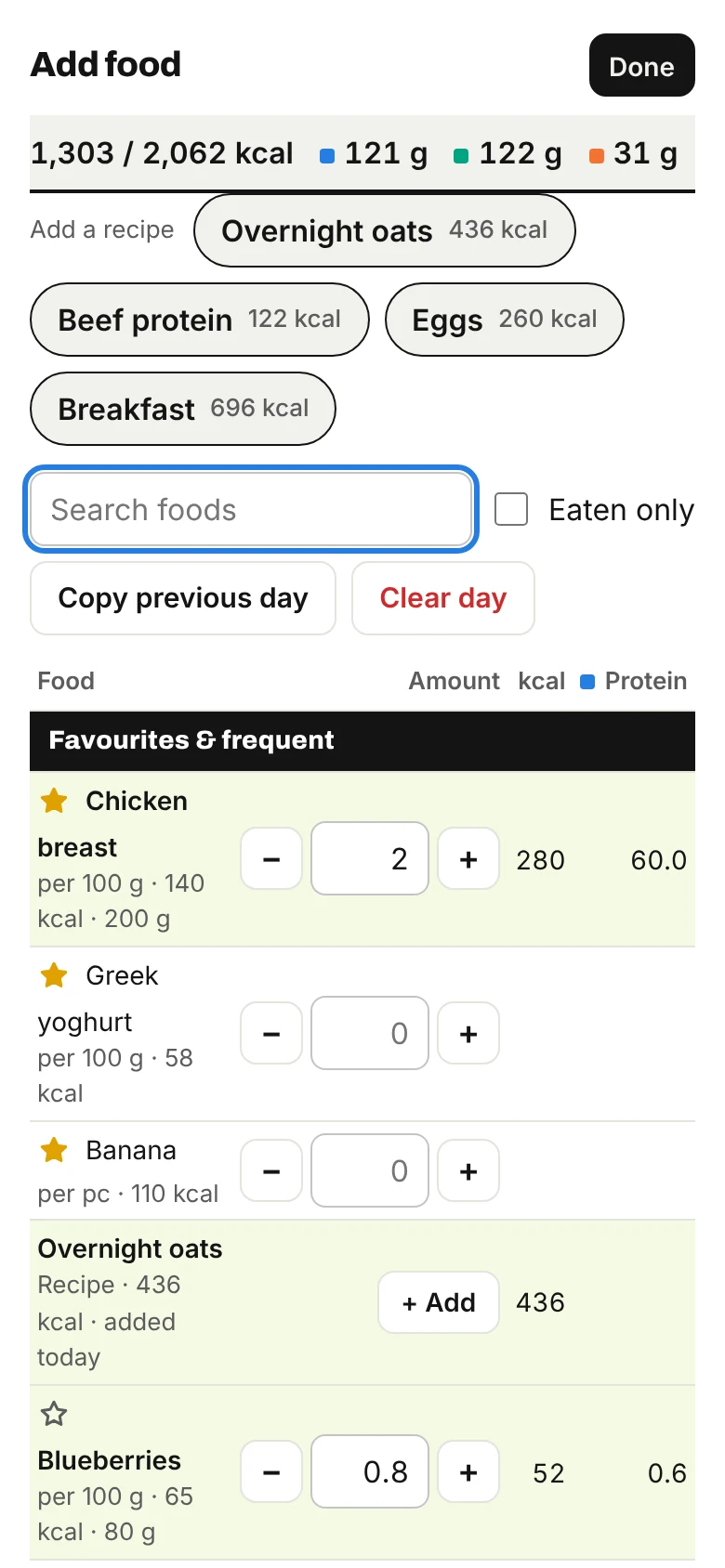
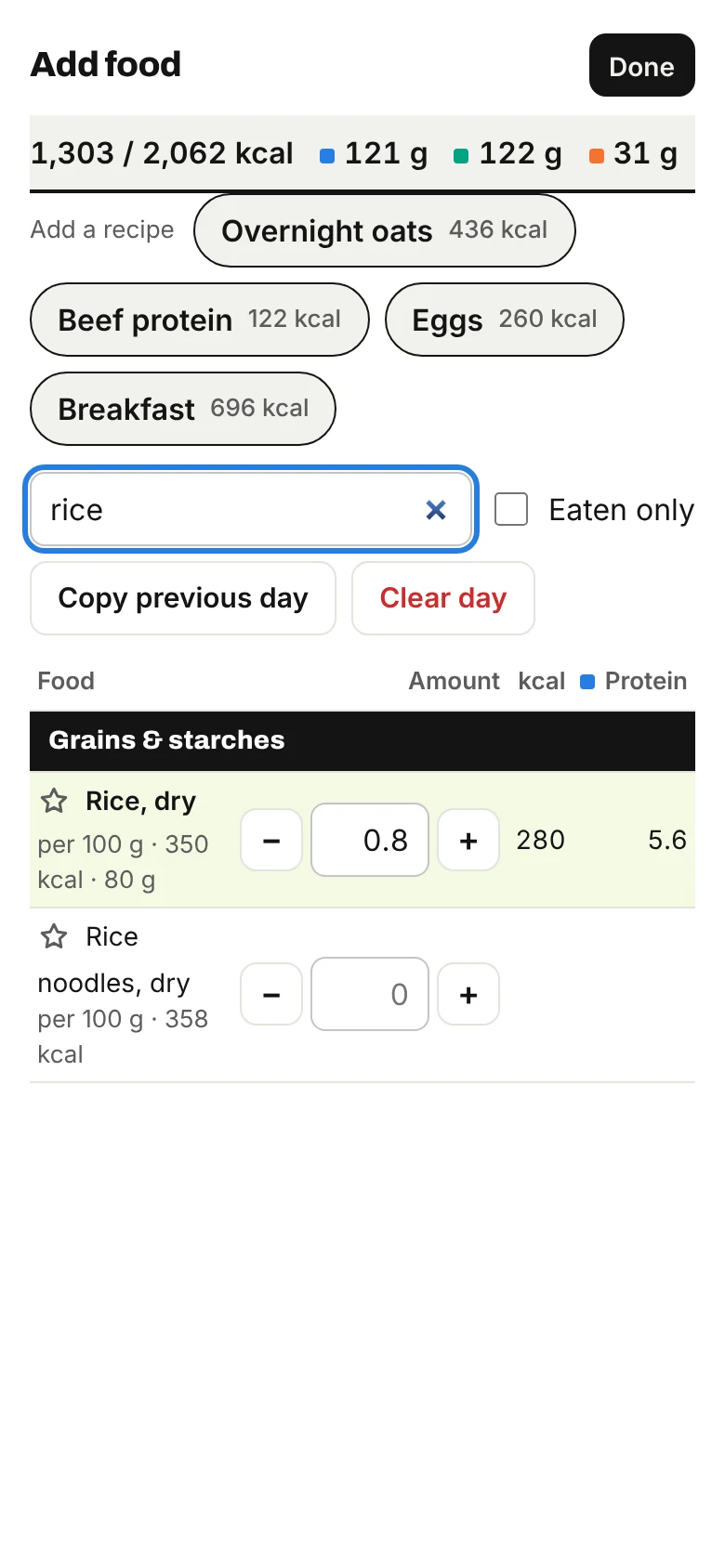
Tap the big +. The food list slides up with a running total at the top. Tap Done when you are finished.
The food list
- The total line at the top: calories eaten / target, then protein, carbs and fat in grams. It updates as you type.
- Add a recipe: one tap adds a whole recipe (all its ingredients) to the day.
- Amounts are in the food’s unit, shown under its name: per 100 g, per pc, per scoop… So 0.8 of rice “per 100 g” is 80 g, and 2 eggs “per pc” is two eggs. Use − and + or type a number.
- Copy previous day fills today with your last logged day (handy for meal prep). Clear day empties it. Both can be undone from the message that appears.
Favourites & frequent
The first group in the list, so the things you eat most are one tap away.
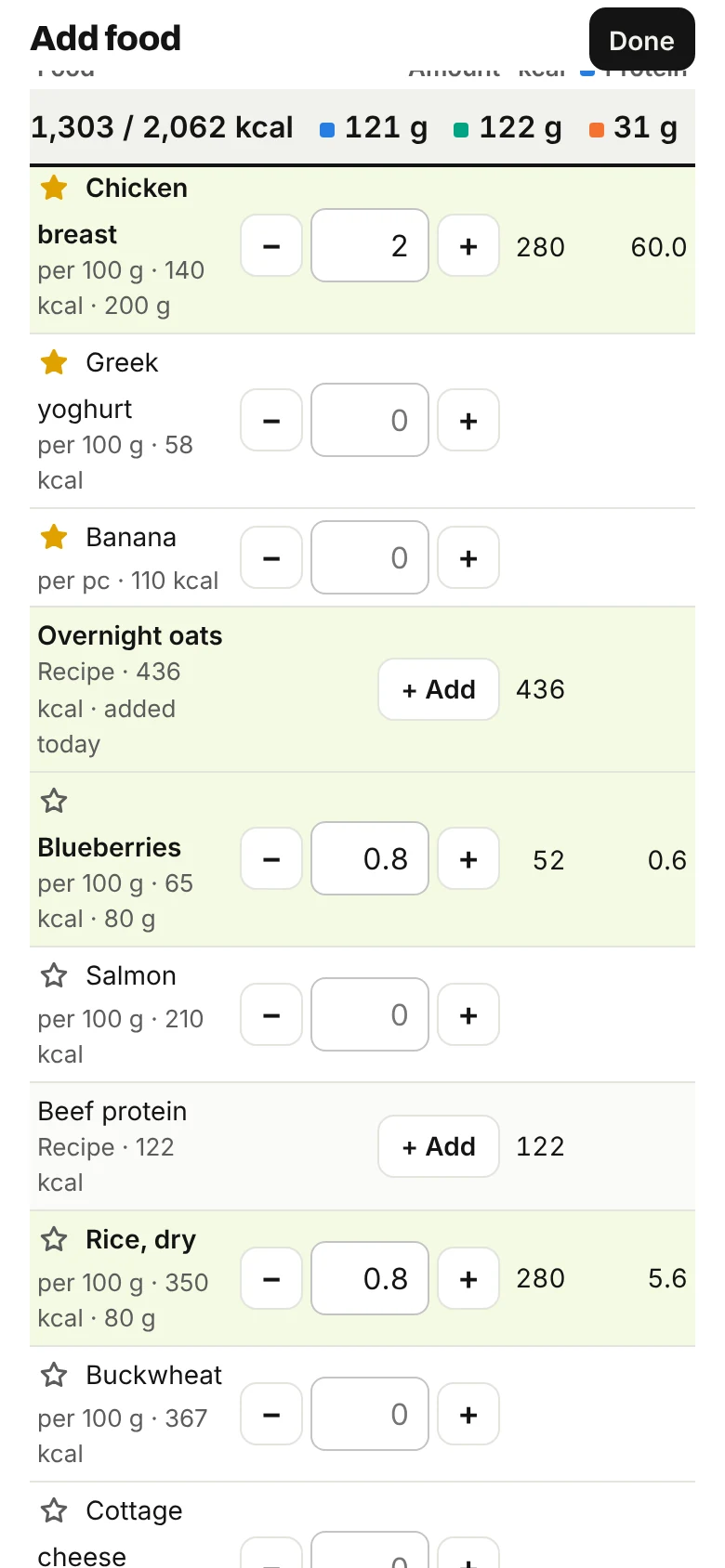
- Favourites: tap the ☆ next to any food to star it (★). Starred foods always stay at the top. Tap again to unstar.
- Frequent: recipes you used and foods you added on their own in the last 14 days, most-used first. Recipes show a + Add button and the note “added today” once logged.
- Ingredients that only came in through a recipe don’t count as frequent. If you log overnight oats, you see Overnight oats, not chia seeds and almond milk.
Change what shows here under Setup → Display → Top of the food list.
Search and “Eaten only”
Type in Search foods to filter by name. If nothing matches, KeepOn offers to add what you typed as a new food.
Tick Eaten only to see just what you have logged for the day, with amounts you can change.
5Foods & recipes
Open from More → Foods & recipes. This is your personal food database; changes save automatically.
Add your own food
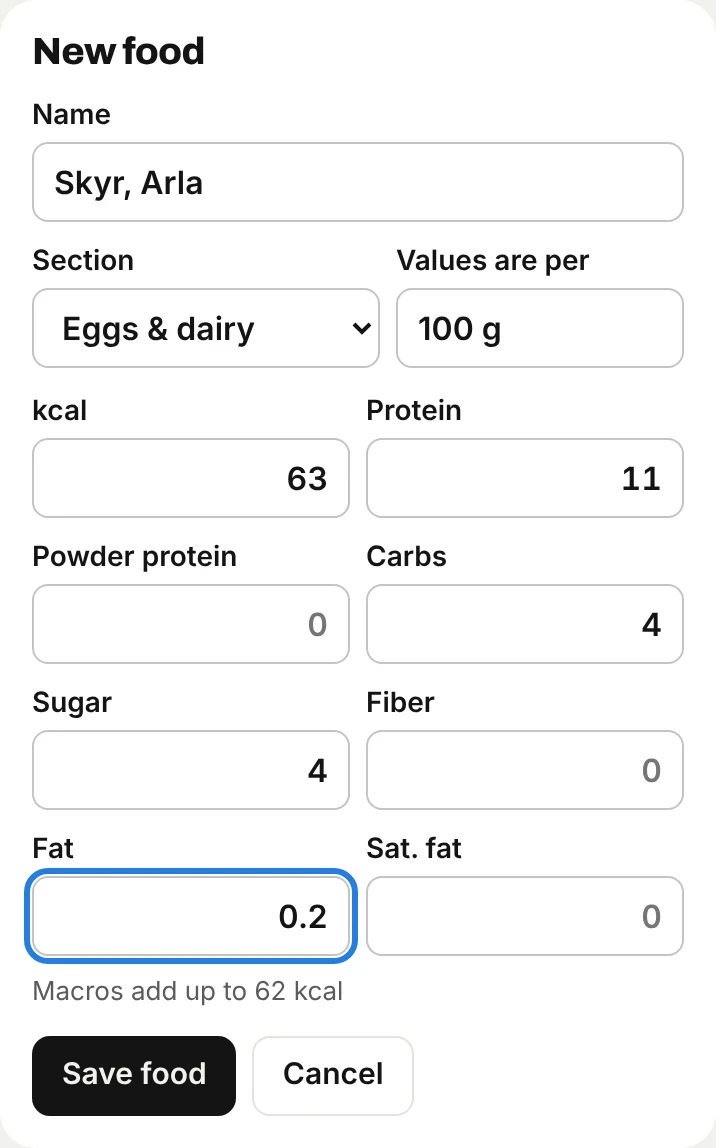
Tap Add food and copy the numbers from the label.
| Field | What to put in |
|---|---|
| Name | What you call it, brand last: Skyr, Arla. |
| Section | Where it sits in the list. |
| Values are per | The unit the label uses: 100 g, 100 ml, pc, scoop, 125 g (a whole pack)… Everything you log is a number of these. |
| kcal, Protein, Carbs, Fat | From the label, for that unit. |
| Powder protein | Protein from a shake or powder, if you want to see it separately. It is part of Protein, not added on top. |
| Sugar, Fiber, Sat. fat | Optional; they feed the limits on Today. |
The line under the fields (“Macros add up to 62 kcal”) is a check: if it is far from the kcal you typed, a number is probably wrong.
In the food table, edit any value in place, move foods with ↑ ↓, or tap Delete twice to remove one. On a phone the table scrolls sideways. Deleted foods stay in your past days.
Recipes, including recipes inside recipes
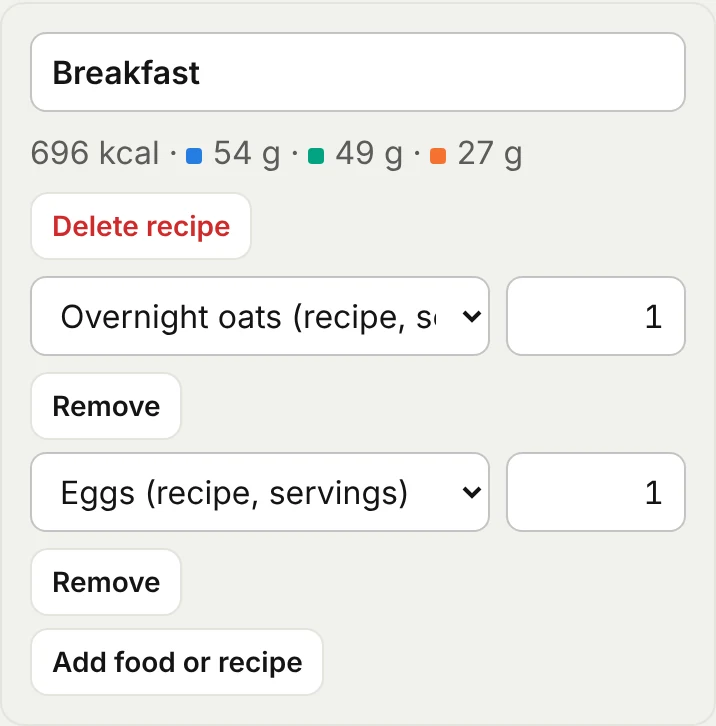
A recipe is a list of foods with amounts. Adding it logs all of them at once. Use recipes for the meals you repeat: your usual breakfast, a shake, a batch-cooked dish.
- Under Recipes, tap New recipe and name it.
- Add food or recipe, pick an ingredient, set the amount in its unit.
- A recipe can contain other recipes. Their amount is in servings. Here, Breakfast = 1 × Overnight oats + 1 × Eggs.
The top line shows the recipe’s totals. Change a recipe later and future uses follow; days already logged keep what you ate.
6Weigh-ins & Body
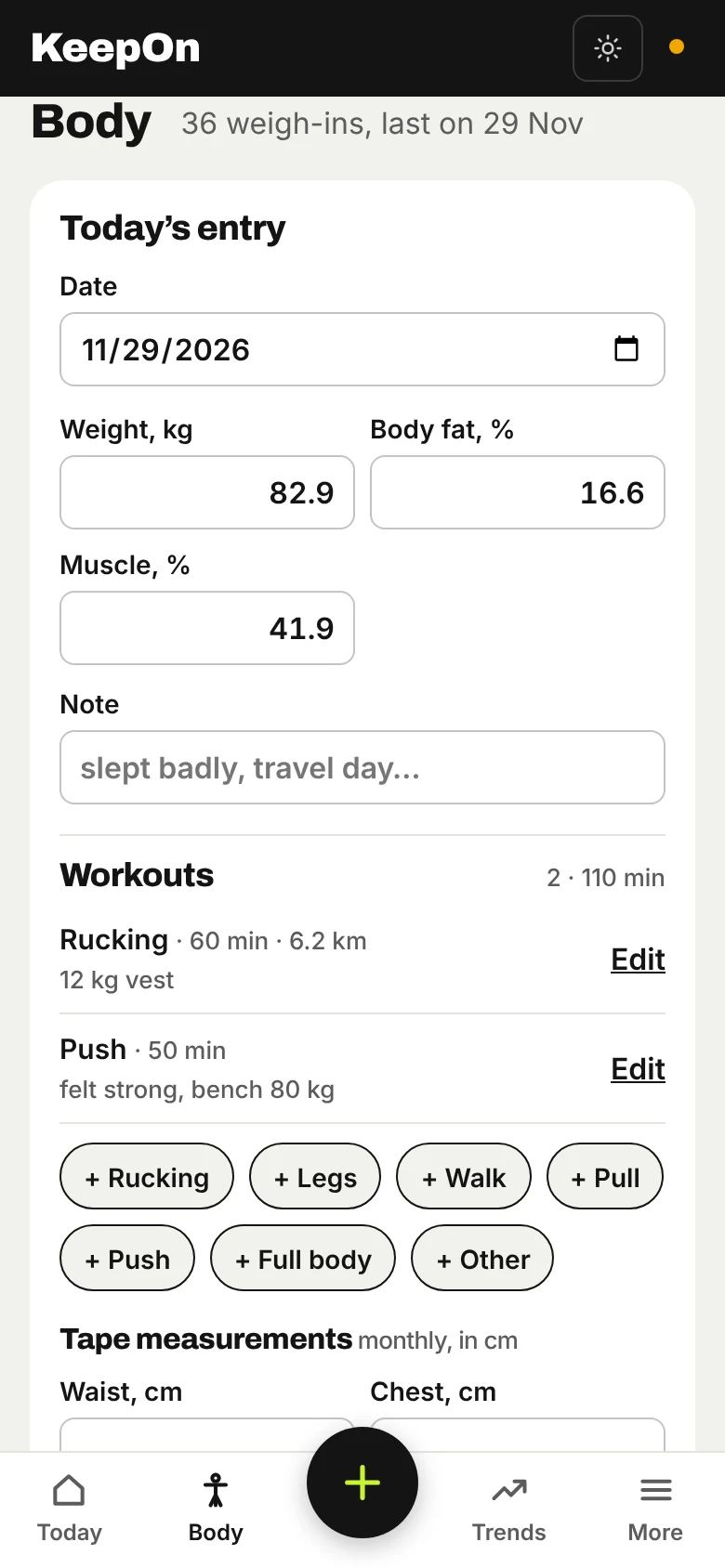
The Body tab holds all your measurements. Today’s weigh-in form is the same one as on Today.
Today’s entry
- Date: pick another day to fill in or fix a past entry.
- Weight, Body fat, Muscle and your daily metrics. Muscle is the percentage most smart scales show.
- Note: free text for the day (“slept badly”, “travel day”). Useful when you look back at a strange week.
- Workouts: the same list as on Today, for the selected date. Handy for adding yesterday’s session.
- Tape measurements: monthly, in cm. Measure at the same spots each time.
The weight chart
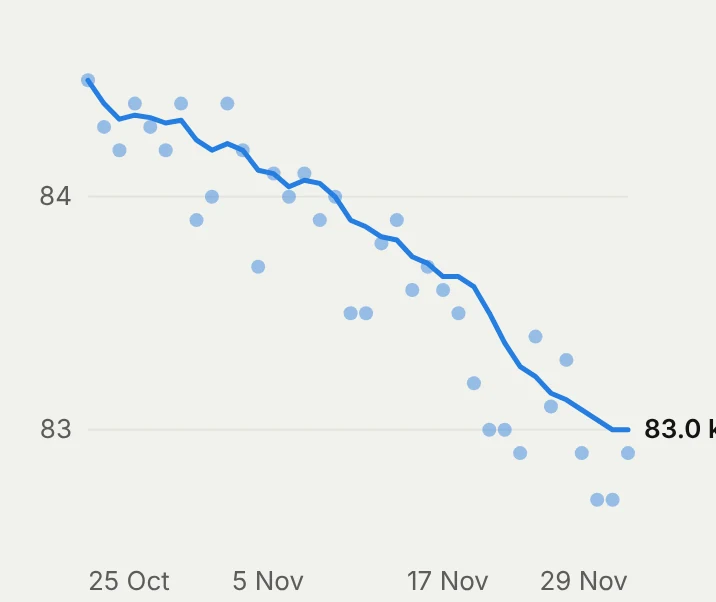
Dots are single weigh-ins; the line is the 7-day average. Follow the line and let the dots be noisy.
7Trends
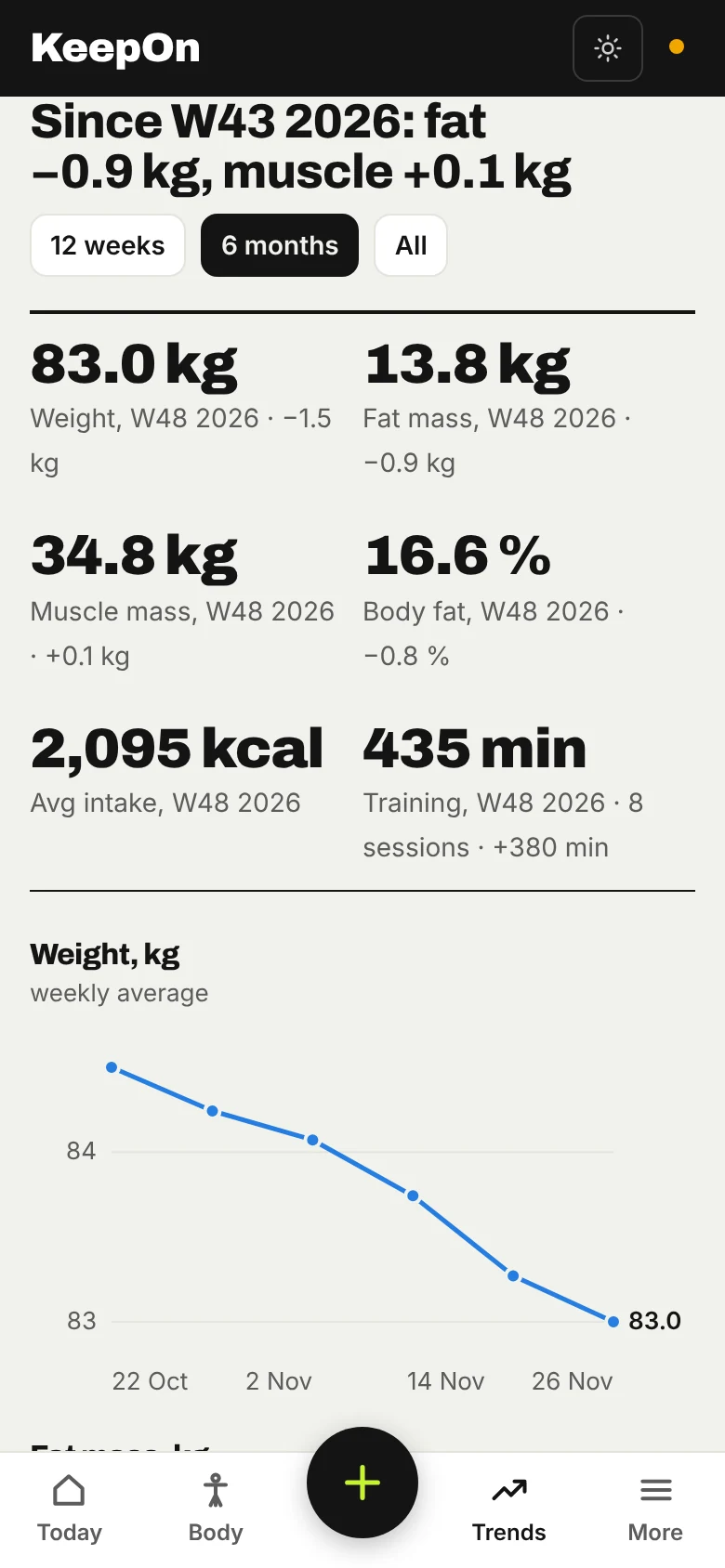
The big picture, by week. Pick 12 weeks, 6 months or All.
What you are looking at
- The headline turns percentages into kilograms: here, since week 43, 0.9 kg of fat lost and 0.1 kg of muscle gained.
- The tiles: latest weekly averages of weight, fat mass, muscle mass, body fat % and average intake, plus training minutes and sessions, each with the change since the start of the range.
- Charts for weight, fat mass, muscle mass, intake and training minutes, one point per week.
- Your own daily metrics (sleep score, resting heart rate, steps…) get a tile, a chart and a column in the week-by-week table too. Put a bad sleep week next to a stalled week and you often have the reason.
8More & recommending people
More
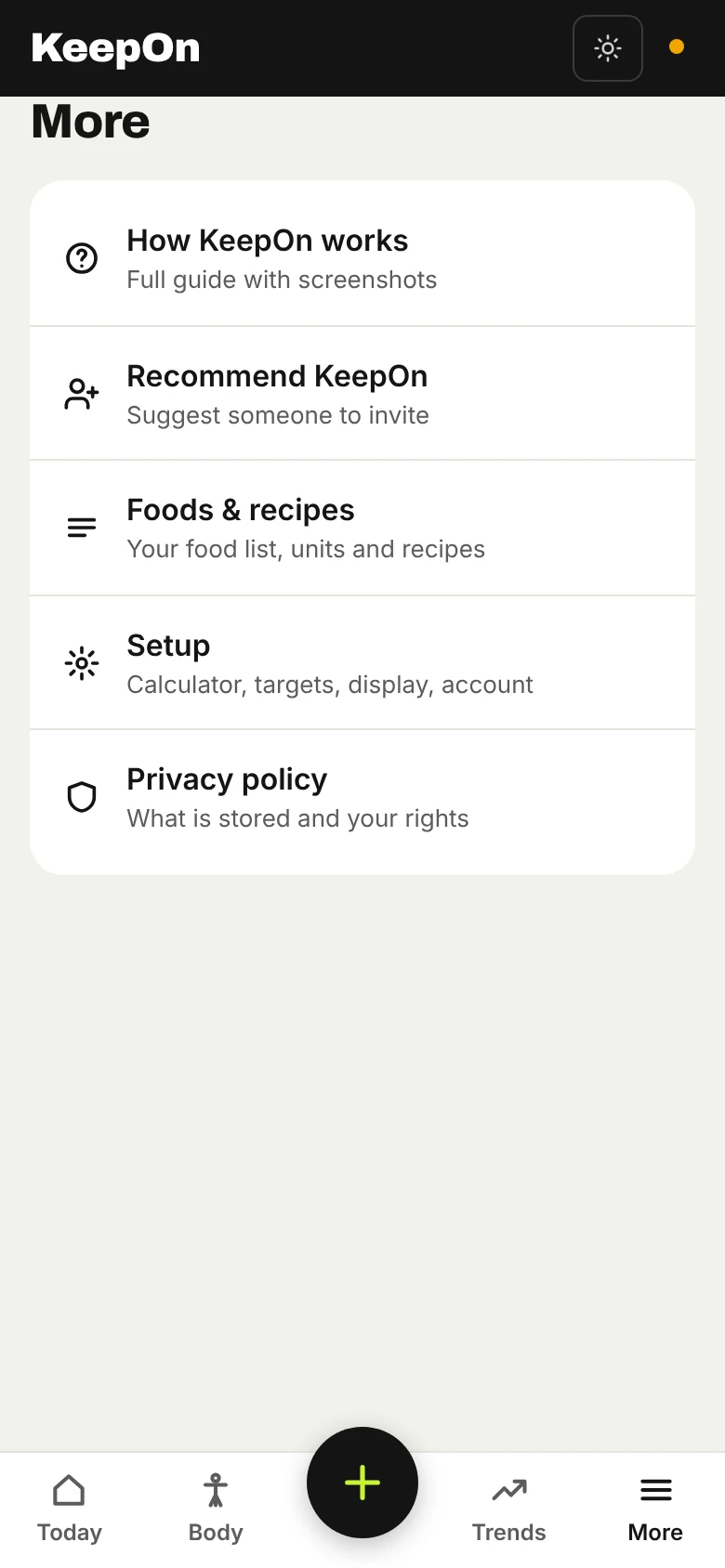
Everything that is not a daily screen: this guide, Recommend KeepOn, Foods & recipes, Setup and the Privacy policy.
Recommend someone
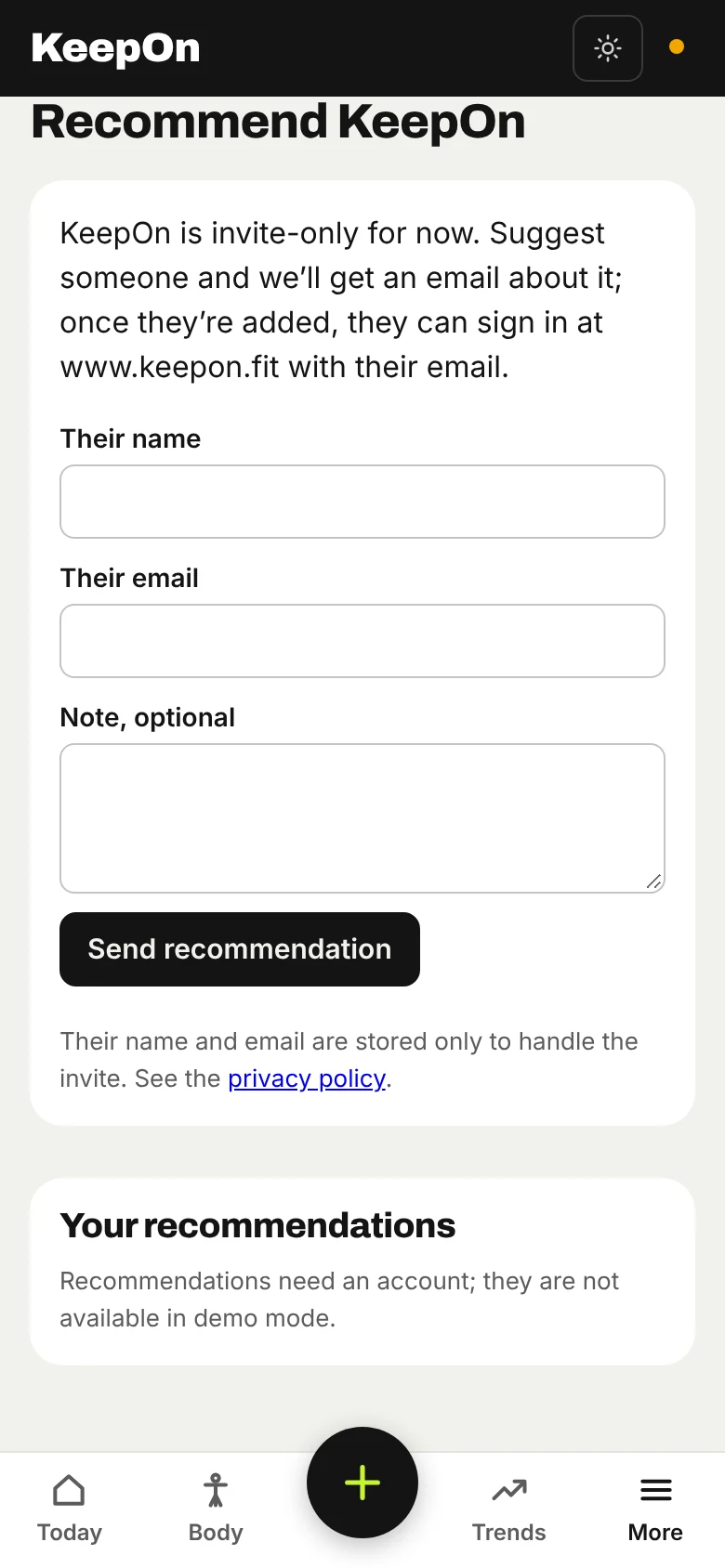
KeepOn is invite-only. Enter a friend’s name and email (and a note if you like) and tap Send recommendation. We get an email; once they are added, they can sign in at www.keepon.fit with that email.
Your recommendations are listed below the form. Their name and email are stored only to handle the invite.
9What goes where
A quick map from “I want to…” to the right place.
| I want to… | Go to |
|---|---|
| Work out how much to eat | Setup → Energy & macro calculator → Use as my daily targets |
| Set my own numbers | Setup → Daily targets |
| Log a food | + → find it → set the amount |
| Log my usual meal in one tap | Make it a recipe (More → Foods & recipes), then + → Add a recipe |
| Keep a food at the top of the list | Tap its ☆ in the food list |
| Fix an amount I just logged | Today → Today’s plate → − / + |
| Log yesterday or fix a past day | Today → ‹ or the calendar |
| Eat the same as yesterday | + → Copy previous day |
| Add a food that is not in the list | + → search → Add “…” as a new food, or More → Foods & recipes → Add food |
| Weigh in | Today → weight card (or Body) |
| Track sleep score, resting heart rate, steps | Setup → Body metrics → add it as Daily; enter it each morning with your weight |
| Track waist, chest… or something new | Body → Tape measurements; add new ones in Setup → Body metrics |
| Log a workout | Today → Workouts → tap a type (or Body → Workouts for another day) |
| Write a note about the day | Body → Note |
| See if it is working | Trends |
| Switch between rings and label | Setup → Display → Today summary |
| Change light / dark | Sun/moon button in the top bar, or Setup → Display → Theme |
| Reorder or add food sections | Setup → Food sections |
| Invite a friend | More → Recommend KeepOn |
| Get a copy of my data / leave | Setup → Account & data |
10Questions
Why does my weight go up when I ate less?
Water. Salt, carbs, training and sleep move your weight by a kilo or more from day to day. That is why KeepOn shows 7-day averages and weekly trends. Judge progress over two weeks or more.
When does “maintenance from your data” appear?
With the default 4-week window, once you have at least 14 logged days and 11 weigh-ins spread over two weeks or more. Until then Setup says what is still missing. Days with nothing logged are left out, so a missed day does not spoil it, but logging only part of a day does.
Should I log everything exactly?
Close enough, every day, beats perfect some days. Weigh foods for the first couple of weeks to learn what a portion looks like. Don’t forget oils, sauces and drinks.
My streak dropped to zero.
The streak counts days in a row with anything logged. Go back to the missed day with ‹ and log it; the streak comes back.
Does it work offline?
KeepOn needs a connection to save. If the connection drops for a moment, it keeps your changes and retries; keep the app open until you are back online. If you use two devices, reopen the second one to pick up the latest data.
Who can see my data?
Only you. It is stored in the EU, never sold or used for marketing, and you can download or delete it at any time. See the privacy policy.
Is this medical advice?
No. The numbers are estimates. If you have a medical condition, are pregnant, or are under 18, talk to a doctor before changing how you eat.